Building a comfortable, ergonomic home office on a budget does not require designer furniture, a motorized standing desk, or an office chair that costs more than your laptop.
Many of the highest-impact ergonomic upgrades come from better positioning, regular movement, and inexpensive tools that help your existing furniture fit your unique body. The clinical guiding rule is simple: solve your biggest physical problem first.
OSHA Ergonomic Principle: OSHA recommends arranging your chair, monitor, keyboard, and pointing devices together as an interconnected system—supporting your feet, balancing your head and neck over your spine, keeping elbows close to your body, and providing continuous lumbar back support.
Start With a 5-Minute Ergonomic Audit
Before spending a single dollar on accessories, sit at your current desk for five minutes and audit what your body is actually doing:
- • Are your feet flat and supported? Or do they dangle, forcing you to hook your heels or brace your thighs?
- • Are you leaning toward the screen? Or twisting your neck sideways to read a secondary display?
- • Are your shoulders hiked? Or are your keyboard and mouse positioned too high or far away?
- • Can you sit all the way back? Does the backrest gently fill your lower back curve?
- • Is window or room glare forcing you to squint?
- • Are you staying locked in one posture for hours without movement?
Write down your top three issues and tackle the most disruptive bottleneck first instead of shopping for ten gadgets at once.
6 High-Impact, Low-Cost Ergonomic Priorities
1. Raise Your Screen Height (Priority #1 for Laptops)
For laptop users, a low display is almost always priority one. Looking downward for hours creates severe cervical strain ("Tech Neck"). Mayo Clinic recommends positioning your monitor so the top third is at eye level with your head centered over your spine.
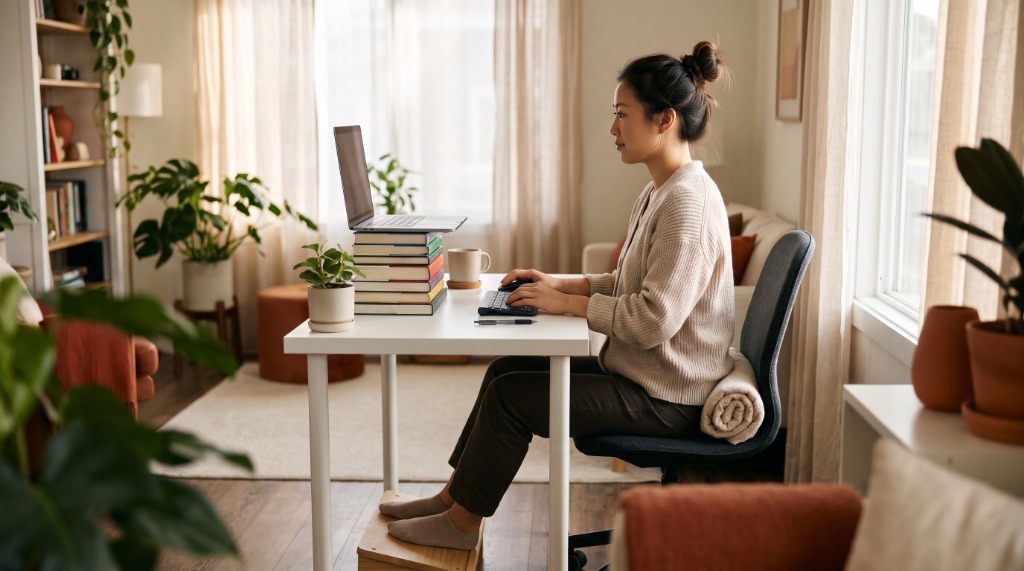
The Fix: Use a simple laptop riser, monitor stand, or a stable stack of sturdy books (ensuring laptop vents are unblocked). Crucial rule: Whenever you elevate a laptop screen, pair it with an inexpensive external keyboard and mouse so your hands remain relaxed at desk level.
2. Support Your Feet Flat
If your chair is elevated so your hands reach a high desk, your feet may dangle. Dangling feet force you to brace your thighs or slide forward off the backrest, flattening your lumbar spine.
The Fix: A footrest is one of the cheapest, highest-ROI ergonomic tools. Use a basic angled footrest, a firm yoga block, a low step stool, or a sturdy wooden box wide enough for both feet that will not slide.
3. Upgrade Lower-Back Support Before Buying a Chair
Before spending hundreds on a replacement chair, sit all the way back against your current backrest and test a small rolled hand towel or compact lumbar pillow placed in the curve of your lower spine.
The Fix: OSHA specifically notes that a rolled towel or removable cushion provides effective support when a chair lacks contouring. Keep the roll modest so it fills your lordotic curve without thrusting your pelvis forward. Budget for a new chair only if the seat pan is too deep or presses painfully into the backs of your knees.
4. Bring Keyboard and Mouse Closer to Your Midline
Reaching forward across a deep desk or reaching wide to the right around a bulky number pad quietly overloads your shoulders, neck, and wrists.
The Fix: Pull both peripherals close so your elbows hover near your ribcage at 90°. If a wide 104-key keyboard forces your mouse far to the right, switching to an inexpensive compact (tenkeyless) keyboard saves valuable inches and eliminates shoulder hiking.
5. Cut Glare and Calibrate Lighting
Screen glare and poor contrast cause unconscious squinting, forward craning, and awkward head tilts that exhaust neck stabilizers.
The Fix: Position your screen perpendicular to bright windows, adjust blinds, increase browser font sizes, and use a simple adjustable desk lamp to illuminate paperwork without creating direct screen reflections.
6. Clear Space for Unrestricted Movement
Ergonomics is not just static furniture—it is movement architecture. Physical clutter around your desk and under your feet discourages standing up and walking.
The Fix: Maintain a clear walking path, keep comfortable shoes nearby, place your water bottle slightly out of arm's reach so you must stand to drink, and set a standing phone stand for calls.
The Smartest Order to Spend Your Budget
If funds are limited, prioritize your upgrades in this high-leverage clinical sequence:
- 1. Stable foot support (Free box/books or $20 footrest) — Instantly stabilizes pelvis & lumbar spine.
- 2. External keyboard & mouse (Essential for laptop users — $25–$35).
- 3. Laptop riser or monitor stand (Free books or $15–$25 riser) — Eliminates forward neck flexion.
- 4. Modest lumbar roll or cushion (Free rolled towel or $15–$25 cushion).
- 5. Adjustable desk lamp / glare management (Adjust window angle, blind control, clean screen).
- 6. Compact tenkeyless keyboard (Pulls mouse 3–4 inches closer to body).
- 7. Properly fitted chair upgrade (Only after confirming dimensions match body).
- 8. Sit-stand converter or adjustable desk (Optional posture variation tool).
Do You Really Need an Expensive Chair or Motorized Desk?
Chairs: A higher price tag buys premium textiles and extended warranties, but never guarantees biomechanical fit. A modest $150 chair with proper seat depth, waterfall front edge, and reachable levers will always outperform a $1,500 designer chair that is too deep for your thighs.
Standing Desks: You do not need a motorized desk to alternate positions. A stable kitchen island, high bookshelf, or budget desktop converter allows you to stand during phone calls or document review without spending thousands.
6 Budget Home-Office Mistakes to Avoid
- × Buying gear before measuring: Measure your desk height, keyboard clearance, and legroom before ordering accessories online.
- × Using wobbly stacks near desk edges: Ensure book stacks or boxes are wide, level, and cannot slip or topple equipment.
- × Raising a laptop without an external keyboard: Typing on an elevated laptop forces wrists into extreme extension and hikes shoulders.
- × Choosing chairs based on aesthetics: Prioritize seat depth, height range, and lumbar curvature over aesthetic leather finishes.
- × Changing everything simultaneously: Adjust one component at a time so you can identify what genuinely resolved your tension.
- × Ignoring movement breaks: Even a perfect $3,000 ergonomic setup cannot offset eight hours of uninterrupted stillness.
Your Free 15-Minute Budget Workstation Reset
Run through this checklist before spending a single dollar:
- 1. Clear clutter from around your desk and under your feet.
- 2. Plant both feet completely flat on the floor or on a firm household box.
- 3. Slide your hips all the way back against the chair backrest.
- 4. Pull your keyboard and mouse close so your elbows hang naturally at your sides.
- 5. Center your primary screen and raise it until the top third aligns with eye level.
- 6. Angle your display to eliminate window or room glare.
- 7. Lower or remove armrests that force you to shrug or block you from pulling close.
- 8. Set an hourly reminder to stand, roll your shoulders, and walk for two minutes.
The Practical Takeaway
A pain-reducing home office is built on biomechanical priorities, not price tags. Fix screen height, foot support, lumbar contouring, reach distance, lighting, and movement habits first—then invest in furniture upgrades only where your current setup cannot adapt.
About the Author
Dr. Chris Bowe, D.C. is a Doctor of Chiropractic and founder of DeskReliefNow, providing practical educational resources on desk ergonomics, movement habits, posture, and musculoskeletal wellness.
Frequently Asked Questions
What is the best low-cost ergonomic upgrade for a home office?
For most laptop users, raising the screen to eye level with a sturdy stand (or stack of books) and adding an inexpensive external keyboard and mouse delivers the biggest comfort improvement. If your feet dangle, a firm footrest is another high-impact, low-cost fix.
Can I use household items to make my desk more ergonomic?
Yes. Sturdy books can raise a monitor, a firm box or step can act as a footrest, and a small rolled towel can add gentle lumbar support. Just confirm every item is level, non-slip, strong enough for the weight, clear of laptop vents, and not a tripping hazard.
Do I need an expensive chair to prevent back pain at home?
No. Fit matters far more than price. A modestly priced chair with proper seat height, comfortable seat depth, gentle lumbar support, and armrests that do not lift your shoulders will outperform an expensive chair with the wrong dimensions for your body.
How can I add standing to my workday without buying a standing desk?
Use a stable kitchen counter, high table, or budget desktop converter for short tasks like phone calls, reading, or reviewing documents. Keep your elbows near your sides and your screen near eye level, and treat standing as an alternating option rather than an all-day requirement.
Educational Disclaimer: This article is authored by Dr. Chris Bowe, D.C. for educational and biomechanical wellness purposes only. It is not intended as medical advice or formal surgical diagnosis. Always consult a licensed healthcare practitioner regarding persistent pain or health conditions.
Dr. Chris Bowe, D.C.
Licensed DCDoctor of Chiropractic • Founder of DeskReliefNow
Dr. Chris Bowe is a licensed Doctor of Chiropractic with over two decades of clinical experience in spinal biomechanics, neurophysiology, and posture correction for remote professionals.